

SharePoint Online is an essential component of Microsoft’s Office 365 suite, and it is indispensable for organisations needing robust content management and collaboration capabilities. While SharePoint is generous with storage allocations, it’s crucial to understand its maximum size and how SharePoint storage storage is managed. This guide will delve into various aspects of SharePoint storage in Office 365, and we’ll even include a calculator to help you determine how much storage you have and need. When we talk about SharePoint storage, its important to remember all your file content in Microsoft Teams is stored SharePoint and therefore counts towards your total.
Finding SharePoint Storage Metrics
First, lets determine how much SharePoint Online storage space is available to your organisation. Navigate to the SharePoint admin center to see these details.
1. Open the Office 365 Admin Portal at https://admin.microsoft.com
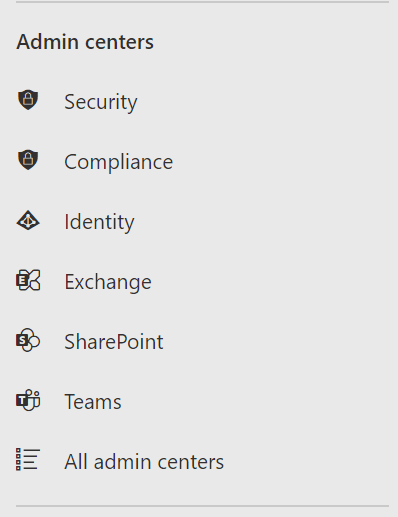
2. Click Show All and open the SharePoint Admin Center
3. Click on Active Sites and in the upper right you will see the storage available and the amount you are consuming

But wait, what happens if we exceed SharePoint Online storage allocation
Oh no, we have run out of storage space in SharePoint Online, what do we do?
You can purchase as much additional Office 365 SharePoint Online storage as your budget allows, to add to your existing subscription plan. This is purchased in 1GB blocks and can be purchased directly from Microsoft or from your reseller. There is generally a only a monthly commitment for additional storage. And no limits to the quantity of storage you can purchase.
How is SharePoint Online Storage allocated as part of Office 365 licensing?
Understanding the storage metrics is key to getting the right storage model for your organisation. There are storage by default factors in Office 365 to use in the calculations. Here’s how we get to the bottom of it:
1. A commercial Tenant gets 1TB
2. Then each user license on a Business or E Plan contributes 10GB to that allocation.
Example. 250 Users
|
eg. 250 Users
|
Storage Allocation
|
|---|---|
|
Tenant Allocation |
1TB |
|
User Allocation |
250GB |
|
Total |
1.25TB |
Example. 3,000 Users
|
eg. 3000 Users
|
Storage Allocation
|
|---|---|
|
Tenant Allocation |
1TB |
|
User Allocation |
30,000GB / 30TB |
|
Total |
31TB |
SharePoint Online Storage Management Options
1. The Importance of the Recycle Bin
The storage used by the Recycle Bin is part of your organisation’s central pool of storage in SharePoint Online. Therefore, it’s wise to monitor it and empty it regularly. You can adjust the recycle bin retention period at both the site level and the tenant level. So pop into the Admin Center and set a reasonable limit storage quota for the Recycle Bin!
2. Additional Storage Options
If you have a Microsoft 365 subscription along with an Office 365 Extra File Storage add-on, the amounts of storage are added, enhancing your organisation’s total storage limit.
3. Site-Specific Limits
Understanding the role of individual site storage limits is really important. 25GB is the maximum storage quota you can have on a single site or site collection for those who have been around a while. Those with admin access can jump into the SharePoint Admin Centre to set lower storage quotas manually. The 25GB is a hard limit, there is nothing set out of the box. Tip – Set a site collection storage quota for all sites, you can always adjust them later at the site level, however at least you can have the conversation with the big consumers about their content.
4. Exclusions in Count
OneDrive storage created for each licensed user is not included in the SharePoint Online storage calculations. Each user gets a maximum personal storage allocation of 1TB to use as they wish. As OneDrive is a personal Document Library, not for company wide content, we would suggest reducing the quota on OneDrives as this is still an area to manage and backup.
5. Preservation Hold Library
Retention Policies or Preservation Holds will impact your storage space. We have seen on a number of occasions, clients exceeding their storage quotas thinking they had deleted content only to have it in a preservation hold in SharePoint Online. It is very important to monitor this during a migration. For example, if you need to delete a library and re-migrate it you could be storing double the content. We like to recommend turning off preservation holds during migrations, at least on the active sites.
6. Microsoft Teams Essential Storage – Warning
If you’re using Microsoft Teams Essentials, 10GB of storage is available per user. This is above and beyond the 10GB each user receives. We have seen several clients who had a Teams Essentials trial running, once the trial expired, they were suddenly over the SharePoint Online storage limit with little or no warning in Office 365.
7. External Users
External users do not count against the licensed user or storage limits in Office 365. Inviting your friends to the SharePoint Online party won’t increase the amount of storage you get, only licensed users count here.
8. Special Cases: Educational Tenants
Storage allocations may be limited for educational tenants in SharePoint Online. Please consult the Office 365 Education service description for further details. See this article for more details
9. Email Alerts
Global Admin will receive an email alert when the maximum storage limit has been exceeded in SharePoint Online. You will also see an alert in the SharePoint Admin portal as you approach the limit.

Remember, each site can have up to 25TB of storage, and you can have up to 2 million such sites depending on your organisation’s size and the plan you choose.
Knowing how SharePoint Online storage quota works can save you time and money, helping you make the most of your Office 365 subscription. SharePoint Online isn’t the cheapest storage around once you exceed the storage pool. We do recommend looking at Archiving Processes or 3rd Party products to ensure you are safeguarded from storage headaches. We will have a blog post on this soon, sign up to the newsletter so you don’t miss it.